Forum Replies Created
-
In reply to: Field Visibility
Currently, the visibility for the following xprofile fields aren’t “user” selectable:
- 1st Text Field – labeled as “Name” by default
- Single Fields – Checkbox Acceptance
- WordPress Fields – Biography
- WordPress Fields – Text Field (First Name, Last Name, Website)
In your example, “surname” as you have applied would be “WordPress Field – Text Field – Last Name” and as indicated the visibility is not “user” selectable.
As to the other xprofile fields the visibility can be set for either:
- Allow members to override – visibility is selectable by users
- Enforce field visibility – visibility is set per selection
Admin can set the visibility during creation or editing of xprofile fields that allow for “Visibility” settings, e.g., Single Fields – Text Box will have a “Visibility” metabox whereby an Admin can set the “Visibility” parameters. See BuddyPress xProfile fields administration for other information.
In reply to: How to force alt text in imagesYou should contact BuddyBoss for support.
In reply to: Email change frontend not sending confirmation emailSounds good, take care.
In reply to: Email change frontend not sending confirmation emailYour second answer is a bit confusing, if you have the Activity component activated, then all you would have had to do was to enter @username (replace username with your actual username) in the Activity post form and the click “Post Update”, afterwards you could delete the post. The reason for doing this is to test whether or not BuddyPress (BP) is sending emails in general and your issue isn’t just isolated with the changing of email address.
Moving along, BP, by default, has a finite number of email templates with corresponding situations that will fire/send an email based on the situation: For example:
- 21 email templates for a single site installation
- 22 email templates for a multisite installation
You can verify the count of email templates by clicking the menu items “Emails > All Emails” within the wp-admin area. You should have a “Published” count number the is equal to or greater than what was previously indicated.
The email template that is responsible for sending the “email change notice” is:
[{{{site.name}}}] Verify your new email addressMake sure the template is present and the status is set to “Published”. Additionally, check that the situation assigned to this template is:
settings-verify-email-changeIf these conditions are true (template is present, published and the correct situation is assigned) then BP should be sending the “Verify your new email address” email”, given that you aren’t receiving errors that might be interrupting the sending process.
In reply to: Removing WP User Profile FieldOK, sounds good and I’ll consider this topic resolved. FWIW, BuddyBoss is a fork of BuddyPress with obvious differences.
Take care.
In reply to: Email change frontend not sending confirmation emailAssuming that you are currently utilizing the ‘bp_email_use_wp_mail‘filter hook that is returning a value of ‘true‘, additional questions are:
- Does this situation apply to all Users?
- If you @mention yourself in an Activity post, do you receive an email indicating such?
This may take a few passes to nail down the source of the issue, so let’s start with some questions that might help in discovering what might be causing the 1st email from being sent.
In reply to: Email change frontend not sending confirmation emailI’m not clear on which/what email that is not being sent. AFAIK, there are 2 emails sent for a successful email address change, for example from the WordPress (WP) backend:
- Email Change Request <- contained in subject line as sent by WP
- Email Changed <- contained in subject line as sent by WP – after a successful change of email address
For the BuddyPress (BP) frontend:
- Verify your new email address <- contained in subject line as sent by BP
- Email Changed <- contained in subject line as sent by WP – after a successful change of email address
For the BP process, please indicate which of the 2 emails is not being sent.
In reply to: Removing WP User Profile FieldThe xprofile field that is indicated in your screenshots is a field that cannot be removed/deleted nor can the visibility be changed. IOW, there is one xprofile field that is required by default with a default label of “Name” and this field cannot be removed/deleted nor can the visibility be changed. The BuddyPress xProfile fields administration documentation states:
It also adds a primary profile field (to store the display “Name” of your members) inside these two groups. The “Name” xProfile field as well as the “Base” & “Signup fields” xProfile field group cannot be deleted.
Correct me if I’m wrong, but it looks like you changed the label from “Name” to “Your Trade Type” which is allowed, however this field has a relationship to the “Nickname” WP profile field and the available options for the “Display name publicly as” dropdown box (both located in any given User’s WP profile page), given that the “field_id” for this xprofile field is equal to 1 (numeric one).
In reply to: Askimet pluginIf your question is about the Akismet plugin then read about it here.
In reply to: Shortcode pageWith BuddyPress 12.x.x or greater, URLs, a.k.a., BuddyPress Directories, is the default configuration (see BuddyPress URLs settings) as opposed to pages. See Navigation menus for additional set-up information.
In the event that you require BP pages, you will have to install and/or activate the BP Classic plugin.
As to shortcodes, there are no built-in (internally defined) shortcodes for BuddyPress.
In reply to: How to instal Buddy PressSee the reply that was given here.
In reply to: How to force alt text in imagesOut of curiosity, what plugin are you using for members to upload their images?
In reply to: Preview what registered members can see?Without more information, it is difficult to say. Have you tried deactivating your other plugins?
In reply to: Why Don’t create Buddypress pages? Help meThe BP Classic plugin is used to augment BuddyPress when, just to name a few:
- Users require BP pages
- Support for BP Legacy Widgets
- Some 3rd party plugins require the BP legacy parser
Otherwise, BuddyPress should launch, just fine, without the BP Classic plugin.
In reply to: Why Don’t create Buddypress pages? Help meThanks for the info regarding your theme. The URL structure appears to be a bit odd, your screenshot reveals:
http://localhost/graymatter/index.php/registerWhere is the “index.php” coming from? Given that rewrite rules and permalinks are working correctly, the expectation would be that the URL would be:
http://localhost/graymatter/registerWhen you click on the “Sample Page”, does it show the contents of the “Sample Page”? And what does the URL structure for that page show?
In reply to: Why Don’t create Buddypress pages? Help meWhat WordPress theme are you using? Also, when you are in the wp-admin area, go to Settings > Permalinks and make sure the “Permalink structure” is not set to “Plain”.
In reply to: Why Don’t create Buddypress pages? Help meWhat might help is that you include a screenshot of the menus and what a page looks like with no content. For example, the following is a screenshot of a page (with content) when the “Activity” menu item is selected:
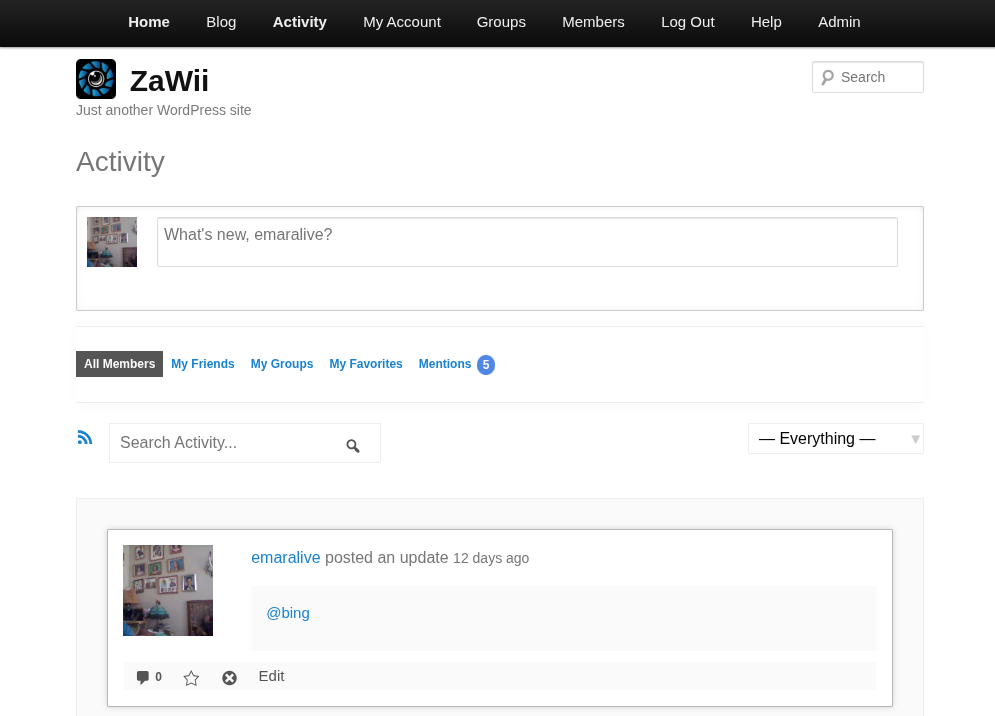
Additionally, what WordPress theme are you using?
In reply to: Why Don’t create Buddypress pages? Help meCould you be more specific? Do you have your menus setup such that you can access the BP pages?
In reply to: Why Don’t create Buddypress pages? Help meIf you had installed BuddyPress prior to version 12.x.x, e.g. versions 11.x.x and below, then you would have had pages. If you install versions 12.x.x and above, the default will be directories as opposed to pages. If you wish to have pages again, then you need to install and/or activate the BP Classic plugin.
In reply to: Preview what registered members can see?The BuddyPress pages that you are making reference are automatically available when components are selected. In order to reach these pages/directories, you will have to set up (create) “Navigation” menu items. To assist you with this task, read through the following documentation:
As to previews, this is available from the wp-admin area via the customizer (Appearance > Customize)
Given your screenshot, the edit-tags.php page appears to have an altered layout. Nevertheless, the submit button for Group Types is named “Add New Group Types” and in your case, this button is located to the right of the “Group Types” Heading (at the top of the page).
For Member Types the submit button is named “Add New Member Type“.
In reply to: Create our own pagesYou will have to add some additional specificity. What pages, e.g., title of these pages, are you trying to create? Additionally, which URL Parser are you using, BP Rewrites or Legacy?
If you haven’t already, you should contact the rtMedia support team and/or developers.
In reply to: Help – I cannot find a Search Bar within GroupsBuddyPress comes with 2 template packs (selectable via the options tab within BuddyPress Settings):
- BP Nouveau – has activity search for individual Group activity stream and for Sitewide activity stream.
- BP Legacy – appears to not have such built-in capability
The following screenshot is what it looks like for the BP Nouveau template pack:
 In reply to: cant find all the buddypress widgets
When using the Classic Widget plugin, deleting a widget from a sidebar or footer area will remove the widget from that area. Widgets that can be added are listed under the “Available Widgets” section (left-hand side).
For BuddyPress widgets to appear in the “Available Widgets” section, when using the Classic Widget plugin, you will have to install and/or activate the BP Classic plugin.


