Search Results for 'theme'
-
AuthorSearch Results
-
February 26, 2011 at 8:55 pm #106411
Virtuali
ParticipantCould be the theme..
1. Deactivate plugins to see if it’s a plugin
2. Switch to default theme and see if it works.
February 26, 2011 at 5:04 pm #106390Nomadamo
MemberI am also curious to learn how you finally managed, cause your site seems to be working great now.
February 26, 2011 at 4:08 pm #106375In reply to: Buddypress adapted version of ARRAS, take a look!
ParticipantNice! I love the arras theme also. Looks like your using the latest version of arras, I am using an old version that wasn’t really adapted for buddypress. But it’s really interesting how they sort of adapted to theming it for buddypress. Me, using the old version of arras that didn’t have anything meant or to do with buddypress, I still integrated it.
Your Arras theming looks good!
February 25, 2011 at 11:24 pm #106329In reply to: BP1.2.8 and the WP 3.1 Admin Bar
r-a-y
KeymasterDid you read the link posted by Avi M?
The BuddyBar and the WP Admin bar are two separate things at the moment.
The WP admin bar was introduced in WP 3.1.
BP_DISABLE_ADMIN_BAR only disables the BuddyBar (contrary to the blog post on bpdevel.wordpress.com).
To disable the WP admin bar, you can simply add the following in your theme’s functions.php:
`add_filter( ‘show_admin_bar’, ‘__return_false’ );`February 25, 2011 at 8:42 pm #106303In reply to: BuddyPress banners
KeymasterYou need to modify the topic template in your BuddyPress theme:
/groups/single/forum/topic.phpUnfortunately I can’t code the thing for you.
This thread can perhaps get you in the right direction:
https://buddypress.org/community/groups/how-to-and-troubleshooting/forum/topic/the-forum-topics-second-posts-position/February 25, 2011 at 1:14 pm #106259grosbouff
ParticipantGot the same problem (WP3.1+BP1.2.

Should work as current_theme_supports( ‘post-thumbnails’ ) returns true…February 25, 2011 at 2:51 am #106226arnoldshields
MemberAny luck? I wan’t to have a transparent section in the header. I ended up just deleting the jpg for the moment as I build the theme.
February 24, 2011 at 11:49 pm #106216In reply to: bp_the_topic_last_poster_name() not working?
KeymasterThat function name is a little misleading, as bp_the_topic_last_poster_name() only works within the forum loop on the forum directory.
You’ll have to write your own function to grab the last poster name in the topic loop try something like this in your theme’s functions.php:
`
function my_the_topic_last_poster_name() {
echo my_get_the_topic_last_poster_name();
}
function my_get_the_topic_last_poster_name() {
global $forum_template;if ( !$domain = bp_core_get_user_domain( $forum_template->topic->topic_last_poster ) )
return __( ‘Deleted User’, ‘buddypress’ );return apply_filters( ‘my_get_the_topic_last_poster_name’, ‘‘ . $forum_template->topic->topic_last_poster_name . ‘‘ );
}
`Then in your topic.php, add the following:
`
`February 24, 2011 at 10:27 pm #106200In reply to: Custom theme- member profile css issue
@mercime
ParticipantCool, didn’t expect that on first try. Glad it worked out for you
 February 24, 2011 at 10:05 pm #106199
In reply to: Custom theme- member profile css issue
marlowjust
MemberFantastic! You nailed it on the head and that solved my issue. Thanks!
February 24, 2011 at 9:56 pm #106196In reply to: Custom theme- member profile css issue
ParticipantDifferent devs roll out their own WP/BP themes in different ways. In your case, if you made a custom WP theme, did you install the BP Template Pack or did you make it BP-compatible another way?
I have seen a similar problem with an install of BP Template Pack. If you added CSS from bp-template pack via import or added BP-specific CSS at bottom of your WP theme’s style.css, you could add this at the bottom of your active theme’s style.css file. Make sure it’s below all other styles you posted before to make it work.
`div#item-header div#item-header-avatar {
float: left;
height: 150px;
margin-right: 15px;
}div#item-header div#item-header-content {
float: left;
margin-left: 0px;
}`Of course, this is just a stab in the dark as you might have had conflicting styling in your theme’s stylesheet which can’t seen via images you posted alone
February 24, 2011 at 9:05 pm #106179In reply to: Custom theme- member profile css issue
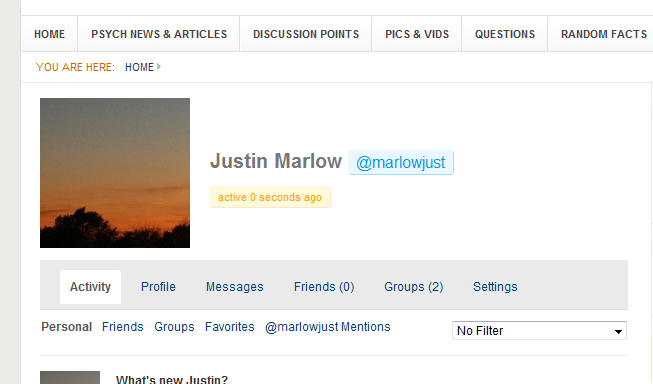
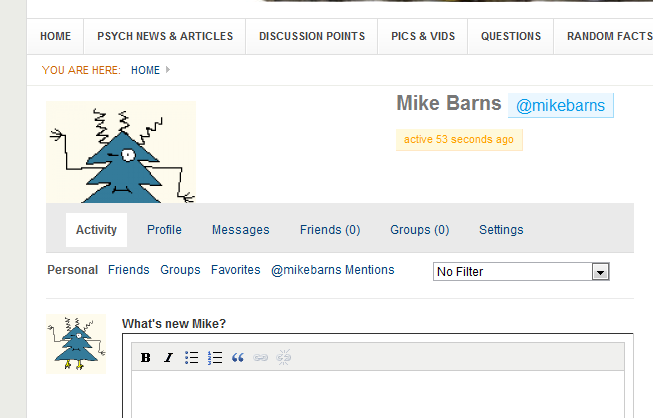
MemberI’m talking about each member’s section as a whole. More specifically the profile header area. The member name/username and last active section is displayed all the way to the right without a status update. Here is a snapshot of what I mean. The first picture is a member who just joined and the second picture is my profile. Mine displays correctly and his does not. Am I missing CSS code that deals with other members?
http://i147.photobucket.com/albums/r306/marlowjust/Website/example1.png
 February 24, 2011 at 8:55 pm #106177
In reply to: Adding a Class to Activity stream posts
KeymasterEasy way is to modify `/activity/entry.php` in your child theme.
The other (and better) way — if you know your way around WordPress filters — is to hook into the “bp_get_activity_css_class” filter located in bp-activity-templatetags.php.
February 24, 2011 at 8:44 pm #106172fishfinder
MemberI have one solution here for you, although it’ll be up to you to deal with cross browser compatibility as far as the css goes. If the second sidebar is not going to be present on every page, you are going to have problems using this code. ….. be warned!!!
If you are doing this on a live site, make sure you have full backups of your template files. I set this up on an install that I’m playing around with. Its not a live site, it is a place for me to muck around with wordpress and buddypress.
This is just a starting point, but if you know your css you should be just fine
Step 1.
We’ll start with single.php here. this file is found in the bp-default theme folder
around line 57, find this code:
“
Copy that, and paste it a second time right below itself. Add a 2 to the part that says sidebar.php so your two lines now look like this:
“
“move those two lines to lines 2 and 3, right below
“Step 2.
Now copy and save sidebar.php as a second file called sidebar2.php. Put that file in the bp-default theme folder so that now you have sidebar.php and sidebar2.php both in there. Open sidebar2.php in a text editor and change the first div at the top from `
` to `` and save and put this back into the bp-default themes folder.Step 3.
Open up the style.css file in the fishbook template folder in an editor.
paste this into that css file:
`div#sidebar2 {
float: right;
width: 224px;
}`step 4.
now we need to shrink the content area in order to make things fit.
locate: div#content in the css file you have open from fishbook.
replace the css rules with this or something similar. note that this will change the content div dimensions on all parts of your site. you will need to rework the content div structure and names if you only want this happening on certain pages in your site.
`div#content {
position:relative;width: 55%;
float:left;}`
this is not cross browser compliant, so you will need to know your css and how to set this up for cross browser compatibility.
Thats a bit of a place to start off anyways. I wish I could be of more help, but I’m not that great with css. If i do manage to come up with a solution that has proper css, I’ll come back and post here.
You would need to place the same code (“) into whatever other files you want to see the second sidebar in. ie. page.php, archive.php, etc.
hope that will help you out in getting started anyways!
dave
February 24, 2011 at 8:35 pm #106170In reply to: Custom theme- member profile css issue
ParticipantDepends, when you say profile, is it just the xprofile page or each member’s section as a whole? Depends also if the selector you used was too specific that it affected only my-pages e.g. and not all other pages. So many reasons, hard to say without examples of what you mean.
February 24, 2011 at 7:59 pm #106158SimonJ
ParticipantI did’nt dig too deep when I found this bug. I reproduced this warning with theme and plugins activation and I switched back to the old file from 1.2.7. But it is more than possible that the problem occuer with other section of the admin area.
Using the old version of the file doesn’t seems to have any side effect though… So it can be considered as a quick bypass to stop the warning… Not a fix, but at least, it’s working.
S.
February 24, 2011 at 5:52 pm #106151In reply to: Changing the code in the BuddyPress files
ParticipantFebruary 24, 2011 at 10:18 am #106128In reply to: cannot enable multisite after buddypress install
ParticipantIf you have BP installed already, and you want to enable multisite https://codex.wordpress.org/Create_A_Network :
1. You need to deactivate all WP/BP plugins and change to default theme (twentyten) first.
2. Note, that if you have had single WP for some time, you can only go multisite in subdomain structure i.e. http://newsite1.example.com. Make sure that your server is set up for that.
https://codex.wordpress.org/Create_A_Network#Step_2:_Setting_Wildcard_Subdomains
3. You only add `define(‘WP_ALLOW_MULTISITE’, true);` to wp-config.php to get `Tools > Network` in your dashboard to start the process. If your server is up to the task, follow dashboard message to enable multisite in your install.
https://codex.wordpress.org/Create_A_Network#Step_3:_Allow_Multisite
= If you encounter multisite creation problems, resolve that first in WP forums https://wordpress.org/support/forum/multisite before re-activating BP/WP plugins.February 23, 2011 at 3:16 am #106015In reply to: Change Menu Bar
ParticipantThere are several tabs – in unordered list #nav. Basically, this is what’s in default theme’s style.css
`#nav {
bottom: 0;
list-style: none outside none;
margin: 0;
max-width: 95%;
padding: 0;
position: absolute;
right: 15px;
}`Change `right: 15px;` to `left: 15px;` You might even want to increase the height of your header area.
February 23, 2011 at 12:23 am #106005Anonymous User 96400
Inactive@stwc
No need for hanging your head anywhere I still remember being really confused by all that filter-action-akadabra-hook-mumbo-jumbo. I’d been using it for a while knowing that it did the things I wanted without really understanding how it did it. Once you do understand it though, it opens up a lot of possibilities, especially when it comes to making your own themes/plugins pluggable.Actions basically add things like markup and/or server-side validation exactly at the point where the do_action calls appear, while filters let you modify/change existing data, like variables, objects or arrays whenever there is a apply_filters call…
February 22, 2011 at 5:14 pm #105979In reply to: Blank page for members
Participant=== I think the problem is related with theme’s root or something like this. ===
Did you change Settings – Permalinks to other than default. Did you change theme to bp-default theme, deactivate all other plugins except BP?February 22, 2011 at 3:42 pm #105973In reply to: Changing the “groups” Slug
modemlooper
ModeratorCoding links into theme HTML with component slugs you use this:
`<a href="//group-name-here” title=””>`
You shouldn’t use http://url.com/groups/blahblah
Also, if you are using cache you may need to renew it.
February 22, 2011 at 1:53 pm #104804Bowe
Participant@oneearth.. Sure I can give you what i have so far. Here it is:
Series: Setting up W3TotalCache with BuddyPress – Part One
W3Total Cache has taken the WordPress world by storm this year. In my opinion it is by far the greatest performance tool for WordPress, and some of it’s features can be used to speed up BuddyPress as well. It has taken me some time to figure out the best settings, and with something as complicated as this, the results may vary. In this (lengty) trick I’m going to take you through the process of setting up W3Total Cache in the following order;
1: About W3 Total Cache and Installation
2: Server setup
2: Setting up the options that play nice with BuddyPress and your hosting setup
3: Using a CDN with MaxCDN
4: Hosting your Theme files and (group)avatars with the CDN
6: A word from the plugin author Frederick Townes
7: ConclusionAs you’ve probably seen, this is quite an extensive guide, and so I decided to split this post into 2 parts.
About W3 Total Cache and Installation
Plugin author Frederick Townes described W3 Total Cache as follows:
The fastest and most complete WordPress performance optimization plugin. Trusted by many popular blogs like: mashable.com, pearsonified.com, noupe.com, webdesignerdepot.com, freelanceswitch.com, briansolis.com, tutsplus.com, yoast.com, css3.info and others — W3 Total Cache improves the user experience of your blog by improving your server performance, caching every aspect of your site, reducing the download time of your theme and providing transparent content delivery network (CDN) integration.
Sounds impressive? Well it is impressive! So let’s install this plugin by going to your plugin browser and searching for W3 Total Cache. When you’ve found it, click on “Install” and that’s all you need to do install it.
Server Setup
Before we start with setting up the plugin, it’s important to tell you something about the general hosting of BuddyPress sites. Depending on the size of your community
Selecting the options that play nice with BuddyPress and your hosting setup
The hardest thing about using W3 Total Cache are the options that you cannot use in combination with BuddyPress. Because of the way that BuddyPress works and meant to be used (as a social networking tool), page caching and database caching causes trouble with the highly dynamic content that is being added to your site. Things like the activity stream will stop to function correctly if you simple enable all these features. I’ve read many times that the plugin “does not work” or “breaks” BuddyPress, but this is simply not the case. It only “breaks” if you try to use it for things that simply are not meant to be used with BuddyPress.
What caching basically does is taking a snaphot of a page at certain time intervals and serving that to the visitor when he visits that page (it’s more complicated then this, but this works to explain it easily). Now this works great if it takes a snapshot of a blogpost, because the content of a blogpost does not change every couple of minutes. But what happens when this concept is applied to your Activity Stream, Profile pages and Groups? You’ll see outdated data on the page, because in the meantime new content like status updates or group updates have been posted by your community. This explains why you can not use these features with BuddyPress.
But not to worry, there are plenty of feature you can use, and thus allow you to drastically speed up your site (just not as much as on a regular old -boring- WordPress site.
Here’s a screenshot of what you can enable:
[screenshot]
Minify:Minification can decrease file size of HTML, CSS, JS and feeds respectively by ~10% on average.
You can enable minification and configure it by visiting the Minify settings in W3TC it’s admin settings. Here’s how I’ve set it up on BP-Tricks:
[screenshot[
Depending on your hosting configuration you can choose which Minify Cache Method you want to use. If you have a dedicated server or VPS server and have something like APC, XCache or eAccelarator installed then use one of those tools. Or else you can just use the Disk method.
If you have a shared server your only option is the disk method.
Object caching: Object caching greatly increases performance for highly dynamic sites (that use the Object Cache API).
This feature so far has proven to work great with BuddyPress, altough it should be used with caution if you’re on a Shared server because sometimes it can actually decrease pageload times on your site. If that stuff happens it might be best to look into a cheap VPS or dedicated server. A little bit of information about the setup being used on BP-Tricks will be given in part two.
Content Delivery Network: Host static files with your content delivery network provider to reduce page load time.
This feature is probably the most useful for us BuddyPress users. In part two there will be a detailed step-by-step guide in setting up your CDN, so serve not only your theme files, but only your avatars, BP-Default Theme files and your essential plugin files!
Browser Cache: Reduce server load and decrease response time by using the cache available in site visitor’s web browser.
Gzip compression of your pages can also help speeding up your load times. Here’s what I have enabled for all sections on the page, and seems to do it’s job perfectly:
Set expires header
Set cache control header
Set entity tag (eTag)
Enable HTTP (gzip) compression
Here’s a screenshot with all my settings:[screenshot]
To check if gzip compression works, you can go to http://www.gidnetwork.com/tools/gzip-test.php and check your domain and see Gzip is working.
Still working on the rest, this is all pretty general info.. But maybe it does help some of you
February 22, 2011 at 5:04 am #105946In reply to: Need custom header to display only on home
ABomb1977
MemberI’m trying to figure exactly what might happen before I try it. I definitely don’t want the WSOD again. So my question is this: can the following code
`
`be run in the functions.php file? Or does it have to be run in the theme header file?
I want to display my custom header on the front page, but not the subsequent pages. I’d like the subsequent pages (behind the walls of my pretty little patch) to display a smaller (in height) header, so that the pages don’t look so darn cluttered to logged-in users.
Ideas?
February 22, 2011 at 12:46 am #105940In reply to: New theme – BuddyBuilder
pcwriter
ParticipantI’ve decided to release an update to the BuddyBuilder Theme Construction Framework before the release of BP1.3 ‘cuz it looks like it’s still going to be awhile… JJJ is still busy repurposing the BP codebase and there appear to be several dozen open tickets that still need resolving.
So, here’s what you can expect in BuddyBuilder 1.1:
– The “BP/WP” section will be divided into 2 new groups: “Privacy” & “BP Extras”. The “Privacy” group will include all the current “Show to…” features with a new option for each one: “Redirect site visitors”. Selecting this new option will redirect your site visitors to any URL you enter in a new “Site visitor redirect URL” option field.
– In addition to the current “Header” & “Sidebar” options, the Searchbar Location feature (under “Navigation”) will include a new placement option for greater theme flexibility: “Main Menu”.
– There will be 2 Theme Locations available for your WP custom menus: 1 menu labeled “Show to everyone” and 1 labeled “Show to logged-in users only”. The logged-in-users-only menu will, surprise, become visible only once a site member logs into your site.
– New options to show the “Login/Signup” form in the main sidebar, the secondary sidebar, or the header.
– A new feature with preset main menu heights: “Normal”, “Thinner”, “Really Thin”.
– A new Full-Width template for your homepage, also full widgetized.
It’ll take me a few weeks to get all this new stuff coded and tested, so don’t expect the update before mid-March. In the meantime, you can see both BuddyBuilder and the free BuddyLite themes at http://BuddyLite.com
Happy theming everyone!
-
AuthorSearch Results